Malware Analysis for Beginners - Static & Dynamic Techniques
Introduction to malware analysis techniques including static analysis, dynamic analysis, behavioral analysis, and practical case studies.
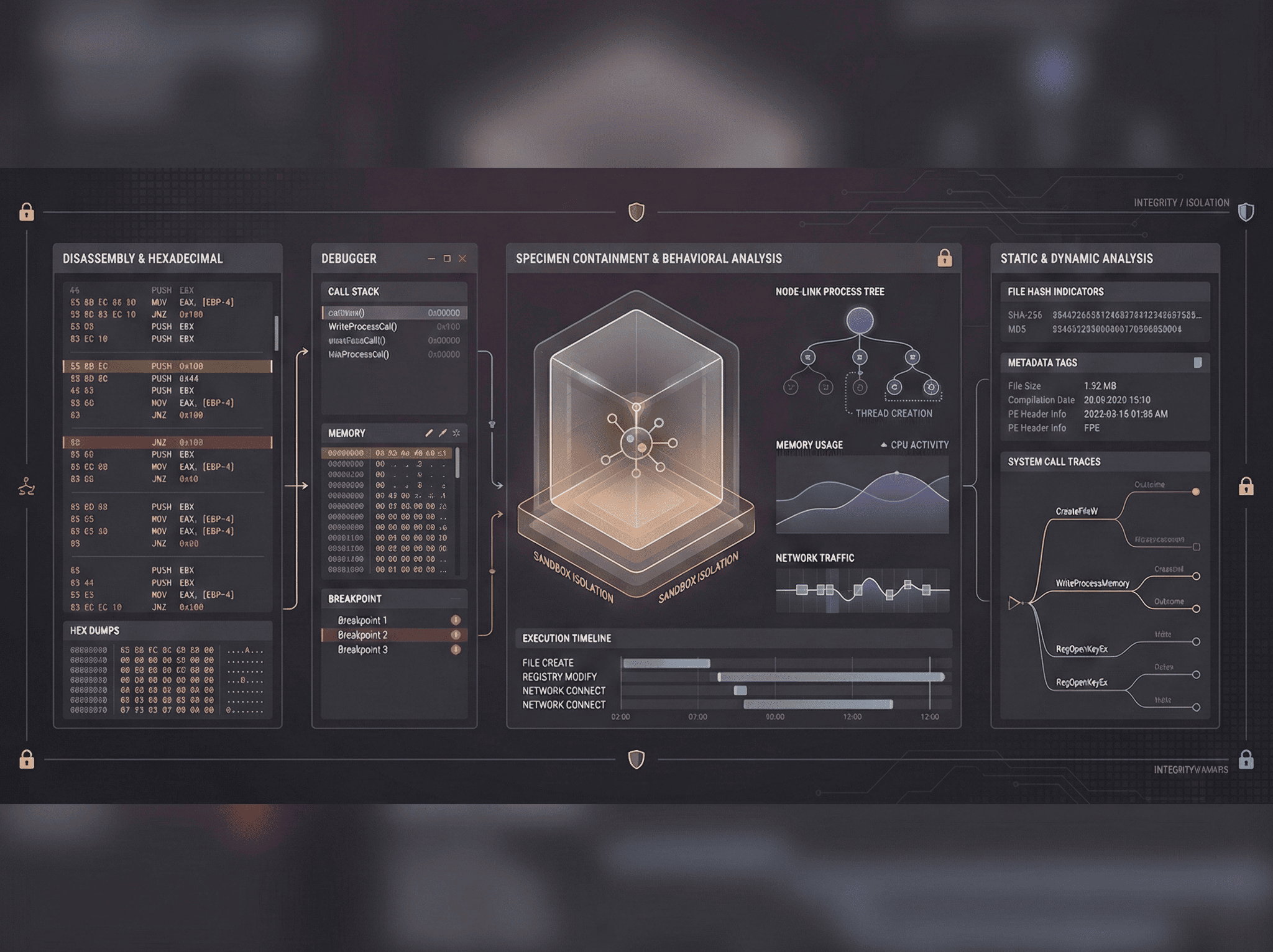
What Is Malware Analysis?
Malware analysis is the process of studying malicious software to understand its behavior, origin, and impact. Whether you’re an incident responder racing to contain a breach, a threat intelligence analyst tracking adversary campaigns, or a reverse engineer dissecting exploit code, malware analysis is a foundational skill in cybersecurity.
There are three primary approaches to analyzing malware:
- Static Analysis: Examining the malware without executing it — inspecting file metadata, strings, imports, and disassembled code.
- Dynamic Analysis: Running the malware in a controlled environment and observing its behavior — process creation, file system changes, network activity, and registry modifications.
- Behavioral Analysis: Combining static and dynamic findings to understand the malware’s purpose, capabilities, and communication patterns.
This guide walks through each technique with practical examples, tools, and a real-world case study that ties everything together.
Setting Up a Safe Analysis Environment
Rule #1: Never analyze malware on your host machine. Always use an isolated environment specifically designed for this purpose.
Building Your Analysis Lab
# Option 1: REMnux — a Linux distribution built for malware analysis
# Download from https://remnux.org and import the OVA into VirtualBox/VMware

# Option 2: FlareVM — Windows-based analysis environment
# Start with a clean Windows 10/11 VM, then run:
# In an elevated PowerShell:
Set-ExecutionPolicy Unrestricted -Force
(New-Object net.webclient).DownloadFile(
  'https://raw.githubusercontent.com/mandiant/flare-vm/main/install.ps1',
  "$env:TEMP\install.ps1"
)
Unblock-File "$env:TEMP\install.ps1"
& "$env:TEMP\install.ps1"
# This installs 100+ analysis tools automatically
Network Isolation
Your analysis VM must be completely isolated from your production network:
┌─────────────────────────────────────────┐
│           Analysis Network              │
│  ┌──────────┐    ┌───────────────┐     │
│  │ Analysis │    │  INetSim /    │     │
│  │   VM     │────│  FakeNet-NG   │     │
│  │ (FlareVM)│    │ (Simulated    │     │
│  └──────────┘    │  Internet)    │     │
│                  └───────────────┘     │
│  Network: Host-Only (no internet)      │
└─────────────────────────────────────────┘
# Set up INetSim on REMnux to simulate internet services
# INetSim provides fake DNS, HTTP, HTTPS, SMTP, and more
sudo inetsim --conf /etc/inetsim/inetsim.conf
# Alternatively, use FakeNet-NG on Windows
# FakeNet-NG intercepts all network traffic and responds
# with configurable fake services
fakenetSnapshot Strategy
Always take a clean snapshot before introducing any malware sample:
- Install your analysis VM and all tools
- Take a clean baseline snapshot
- Load the malware sample
- Perform your analysis
- Revert to the clean snapshot when done
This workflow ensures that every analysis starts from a known-good state and prevents cross-contamination between samples.
Static Analysis Techniques
Static analysis examines the malware without running it. This is the safest starting point and often reveals critical information about the sample’s capabilities.
Step 1: File Identification and Hashing
# Generate file hashes for identification
md5sum suspicious_file.exe
sha256sum suspicious_file.exe

# Check if the sample is already known
# Search the SHA-256 hash on VirusTotal, MalwareBazaar, or Hybrid Analysis

# Identify the true file type (don't trust extensions)
file suspicious_file.exe
# Output: PE32 executable (GUI) Intel 80386, for MS Windows

# Detailed file metadata with exiftool
exiftool suspicious_file.exe
The hash serves as the malware’s unique fingerprint. Searching it against threat intelligence databases like VirusTotal can instantly reveal if the sample is known, which malware family it belongs to, and what detection names various antivirus engines assign to it.
Step 2: String Extraction
Strings embedded in the binary often reveal critical indicators — URLs, IP addresses, registry keys, file paths, error messages, and function names:
# Extract ASCII and Unicode strings
strings suspicious_file.exe | head -100
strings -e l suspicious_file.exe  # Unicode (little-endian)

# Use FLOSS for advanced string extraction
# FLOSS decodes obfuscated strings that standard tools miss
floss suspicious_file.exe

# Look for interesting patterns
strings suspicious_file.exe | grep -iE '(http|https|ftp|\.com|\.net|\.exe|\.dll)'
strings suspicious_file.exe | grep -iE '(password|admin|login|token|key|secret)'
strings suspicious_file.exe | grep -iE '(HKLM|HKCU|CurrentVersion\\Run)'
strings suspicious_file.exe | grep -oE '([0-9]{1,3}\.){3}[0-9]{1,3}'
Step 3: PE Header Analysis
The Portable Executable (PE) header contains metadata about the binary’s structure, imports, exports, and compilation details:
# Analyze PE headers with pefile (Python)
python3 << 'EOF'
import pefile
import datetime

pe = pefile.PE('suspicious_file.exe')

# Compilation timestamp
timestamp = pe.FILE_HEADER.TimeDateStamp
compile_time = datetime.datetime.utcfromtimestamp(timestamp)
print(f"Compile Time: {compile_time} UTC")

# Check for packing (high entropy indicates packing/encryption)
for section in pe.sections:
    name = section.Name.decode().rstrip('\x00')
    entropy = section.get_entropy()
    packed = "LIKELY PACKED" if entropy > 7.0 else ""
    print(f"Section: {name:10s} | Size: {section.SizeOfRawData:>8} | "
          f"Entropy: {entropy:.2f} {packed}")

# List imported DLLs and functions
print("\n--- Imports ---")
if hasattr(pe, 'DIRECTORY_ENTRY_IMPORT'):
    for entry in pe.DIRECTORY_ENTRY_IMPORT:
        dll_name = entry.dll.decode()
        print(f"\n{dll_name}:")
        for imp in entry.imports:
            if imp.name:
                print(f"  - {imp.name.decode()}")

# Suspicious imports to look for:
# CreateRemoteThread — code injection
# VirtualAllocEx — remote memory allocation
# WriteProcessMemory — writing to another process
# URLDownloadToFile — downloading payloads
# RegSetValueEx — registry persistence
# CreateService — service-based persistence
EOF
Step 4: YARA Rule Matching
YARA rules let you match malware against known patterns and signatures:
# Example YARA rule for detecting a simple downloader
cat > downloader_rule.yar << 'EOF'
rule Suspicious_Downloader {
    meta:
        description = "Detects potential malware downloader behavior"
        author = "Rana Uzair Ahmad"
        date = "2025-10-15"

    strings:
        $url_download = "URLDownloadToFileA" ascii
        $winhttp = "WinHttpOpen" ascii
        $useragent = "Mozilla" ascii
        $powershell = "powershell" ascii nocase
        $cmd_exec = "cmd.exe /c" ascii nocase
        $http = "http://" ascii
        $https = "https://" ascii

    condition:
        uint16(0) == 0x5A4D and    // MZ header (PE file)
        filesize < 1MB and
        ($url_download or $winhttp) and
        ($http or $https) and
        any of ($powershell, $cmd_exec)
}
EOF

# Run the YARA rule against a sample
yara downloader_rule.yar suspicious_file.exe
Dynamic Analysis Techniques
Dynamic analysis involves executing the malware in your isolated environment and monitoring its behavior in real time.
Process Monitoring with Process Monitor
Process Monitor (ProcMon) from Sysinternals captures real-time file system, registry, and process activity:
# Key ProcMon filters for malware analysis:
Process Name | is    | suspicious_file.exe    | Include
Operation    | is    | WriteFile              | Include
Operation    | is    | RegSetValue            | Include
Operation    | is    | Process Create         | Include
Path         | contains | AppData             | Include
Path         | contains | Temp                | Include
Path         | contains | CurrentVersion\Run  | Include
Network Traffic Capture
# Capture all network traffic during execution
# On REMnux (acting as the network gateway):
sudo tcpdump -i eth0 -w malware_traffic.pcap

# Analyze the capture with tshark
tshark -r malware_traffic.pcap -T fields \
  -e ip.dst -e tcp.dstport -e http.host -e dns.qry.name \
  | sort -u

# Look for C2 communication patterns
tshark -r malware_traffic.pcap -Y "http.request" -T fields \
  -e http.request.method -e http.host -e http.request.uri

# DNS queries reveal C2 domains
tshark -r malware_traffic.pcap -Y "dns.qry.type == 1" -T fields \
  -e dns.qry.name | sort | uniq -c | sort -rn
Automated Sandbox Analysis
Online sandboxes provide automated dynamic analysis with detailed reports:
# Submit to Hybrid Analysis via API
curl -X POST "https://www.hybrid-analysis.com/api/v2/submit/file" \
  -H "api-key: YOUR_API_KEY" \
  -H "user-agent: Falcon Sandbox" \
  -F "file=@suspicious_file.exe" \
  -F "environment_id=160"  # Windows 10 64-bit

# Other sandbox options:
# - ANY.RUN (interactive sandbox)
# - Joe Sandbox
# - Triage by Hatching
# - CAPE Sandbox (open-source, self-hosted)
Registry Monitoring
Malware frequently modifies the Windows registry for persistence:
# Monitor registry changes during execution
# Using RegShot — take a "before" snapshot, run the malware, take an "after" snapshot

# Common persistence registry keys to monitor:
# HKCU\Software\Microsoft\Windows\CurrentVersion\Run
# HKLM\Software\Microsoft\Windows\CurrentVersion\Run
# HKCU\Software\Microsoft\Windows\CurrentVersion\RunOnce
# HKLM\SYSTEM\CurrentControlSet\Services
# HKCU\Software\Microsoft\Windows\CurrentVersion\Explorer\Shell Folders

# PowerShell: Export registry keys before/after execution
$keys = @(
    "HKCU:\Software\Microsoft\Windows\CurrentVersion\Run",
    "HKLM:\Software\Microsoft\Windows\CurrentVersion\Run",
    "HKLM:\SYSTEM\CurrentControlSet\Services"
)
foreach ($key in $keys) {
    Get-ItemProperty -Path $key -ErrorAction SilentlyContinue |
    Format-List | Out-File -Append "registry_snapshot.txt"
}
Disassembly and Reverse Engineering
When static and dynamic analysis aren’t enough, you need to examine the code itself using disassemblers and debuggers.
IDA Free / IDA Pro
IDA (Interactive DisAssembler) is the industry-standard disassembler. Key features include:
- Graph view: Visualize control flow and function call graphs
- Cross-references (Xrefs): Find where functions and strings are used
- Type recovery: Reconstruct data structures and function signatures
- Scripting: Automate analysis with IDAPython
Ghidra (Free, by NSA)
Ghidra is a powerful open-source alternative to IDA with built-in decompilation:
// Ghidra script to find interesting function calls
// Run in Ghidra's Script Manager

import ghidra.app.script.GhidraScript;
import ghidra.program.model.symbol.*;
import ghidra.program.model.listing.*;

public class FindSuspiciousCalls extends GhidraScript {
    String[] suspicious = {
        "CreateRemoteThread", "VirtualAllocEx", "WriteProcessMemory",
        "NtUnmapViewOfSection", "URLDownloadToFile", "ShellExecute",
        "WinExec", "CreateProcess", "InternetOpen"
    };

    public void run() throws Exception {
        SymbolTable symTable = currentProgram.getSymbolTable();
        for (String funcName : suspicious) {
            SymbolIterator symbols = symTable.getSymbols(funcName);
            while (symbols.hasNext()) {
                Symbol sym = symbols.next();
                printf("Found %s at %s\n", funcName, sym.getAddress());
                // Find cross-references to this function
                for (Reference ref : getReferencesTo(sym.getAddress())) {
                    printf("  Called from: %s\n", ref.getFromAddress());
                }
            }
        }
    }
}
x64dbg (Dynamic Debugging)
x64dbg is a free, open-source debugger for Windows executables:
# Common breakpoints for malware analysis in x64dbg:

# API breakpoints for unpacking
bp VirtualAlloc        # Memory allocation (unpacking stage)
bp VirtualProtect      # Changing memory permissions
bp CreateProcessInternalW  # Process creation

# Network activity breakpoints
bp InternetConnectA
bp HttpSendRequestA
bp WSAConnect

# File operations
bp CreateFileW
bp WriteFile

# Anti-debugging detection
bp IsDebuggerPresent
bp CheckRemoteDebuggerPresent
bp NtQueryInformationProcess
Case Study: Analyzing a Trojan Downloader
Let’s walk through a practical analysis of a hypothetical trojan downloader to illustrate the complete workflow.
Initial Triage (Static)
File: invoice_2025.exe
MD5:  a1b2c3d4e5f6789012345678abcdef01
SHA256: deadbeefcafebabe1234567890abcdef...
File Type: PE32 executable (GUI) Intel 80386
File Size: 45,056 bytes
Compile Time: 2025-09-28 03:14:00 UTC
String analysis revealed:
http://malicious-c2[.]com/stage2.bin— second-stage payload URLHKCU\Software\Microsoft\Windows\CurrentVersion\Run— persistence mechanismsvchost.exe— possible process injection targetcmd.exe /c ping 127.0.0.1 -n 3 > nul && del— self-deletion command
PE analysis showed:
- UPX-packed (high entropy in
.UPX0and.UPX1sections) - Imports:
URLDownloadToFileA,CreateRemoteThread,VirtualAllocEx
Unpacking
# Unpack with UPX
upx -d invoice_2025.exe -o invoice_unpacked.exe

# Verify: entropy should drop significantly after unpacking
python3 -c "
import pefile
pe = pefile.PE('invoice_unpacked.exe')
for s in pe.sections:
    print(f'{s.Name.decode().rstrip(chr(0)):10s} entropy: {s.get_entropy():.2f}')
"
Dynamic Analysis Results
After executing the sample in the isolated lab:
- Process tree:
invoice_2025.exe→ spawnedcmd.exe→ spawnedsvchost.exe - Registry modification: Added
"WindowsUpdate" = "C:\Users\...\AppData\Local\Temp\svchost.exe"to the Run key - Network activity: DNS query for
malicious-c2[.]com, followed by HTTP GET/stage2.bin - File drops:
C:\Users\...\AppData\Local\Temp\svchost.exe(second-stage payload) - Self-deletion: Original file deleted via delayed
pingcommand
Indicators of Compromise (IOCs)
IOCs:
  hashes:
    - md5: a1b2c3d4e5f6789012345678abcdef01
    - sha256: deadbeefcafebabe1234567890abcdef...
  network:
    - domain: malicious-c2[.]com
    - url: http://malicious-c2[.]com/stage2.bin
    - ip: 198.51.100[.]42
  host:
    - file_path: "%LOCALAPPDATA%\\Temp\\svchost.exe"
    - registry: "HKCU\\Software\\Microsoft\\Windows\\CurrentVersion\\Run\\WindowsUpdate"
  behavior:
    - Process injection into svchost.exe
    - Self-deletion via ping-based delay
Essential Tools Summary
| Tool | Platform | Purpose |
|---|---|---|
| PEStudio | Windows | PE file initial triage |
| FLOSS | Cross-platform | Advanced string extraction |
| Detect It Easy (DIE) | Cross-platform | Packer/compiler detection |
| IDA Free / Ghidra | Cross-platform | Disassembly and decompilation |
| x64dbg | Windows | Dynamic debugging |
| Process Monitor | Windows | Real-time system activity monitoring |
| Wireshark / tshark | Cross-platform | Network traffic analysis |
| YARA | Cross-platform | Pattern matching and classification |
| Cuckoo / CAPE Sandbox | Linux host | Automated dynamic analysis |
| REMnux | Linux | Analysis distribution with 100+ tools |
| FlareVM | Windows | FLARE team’s analysis environment |
Conclusion
Malware analysis is a skill that combines detective work with deep technical knowledge. Start with static analysis to safely gather initial intelligence, then move to dynamic analysis in an isolated environment to observe real behavior. As your skills develop, add reverse engineering with disassemblers and debuggers to understand the code-level logic behind malware capabilities.
The most important principles to remember:
- Isolation is non-negotiable — always use dedicated, snapshotted VMs
- Document everything — timestamps, hashes, screenshots, and network captures
- Think like the adversary — understand not just what the malware does, but why
- Share your findings — contribute IOCs to threat intelligence platforms to help the community
Every sample you analyze makes you better at understanding the threat landscape and builds the expertise needed to protect organizations against sophisticated attacks.